Commands & snapshots
A macro is a saved command or sequence. Assign the same macro to a device button, encoder, Stream Deck key or timeline cue. Editing it changes the contents used by every assignment that refers to it.
Open a control assignment, then its macro field. Choose an existing entry or Quick-Create for a single command. Choose Multi-Step for a sequence. The library offers search, edit, test, delete and duplicate for eligible custom macros.
Test sends the command. Before testing, check the destination and whether it can start lighting, audio or video.
Single commands
Choose the protocol and its settings. Select device offers installed plugins, which build the command from fields for your destination. Without a suitable plugin, enter the values yourself. Finish with Save Changes, then confirm in the name dialog. When opened from an assignment, the new macro is assigned there too.
Min Time Between Go (s) limits how quickly the same macro may be triggered again. It helps prevent accidental double presses; it is not a delay within the sequence.
MIDI
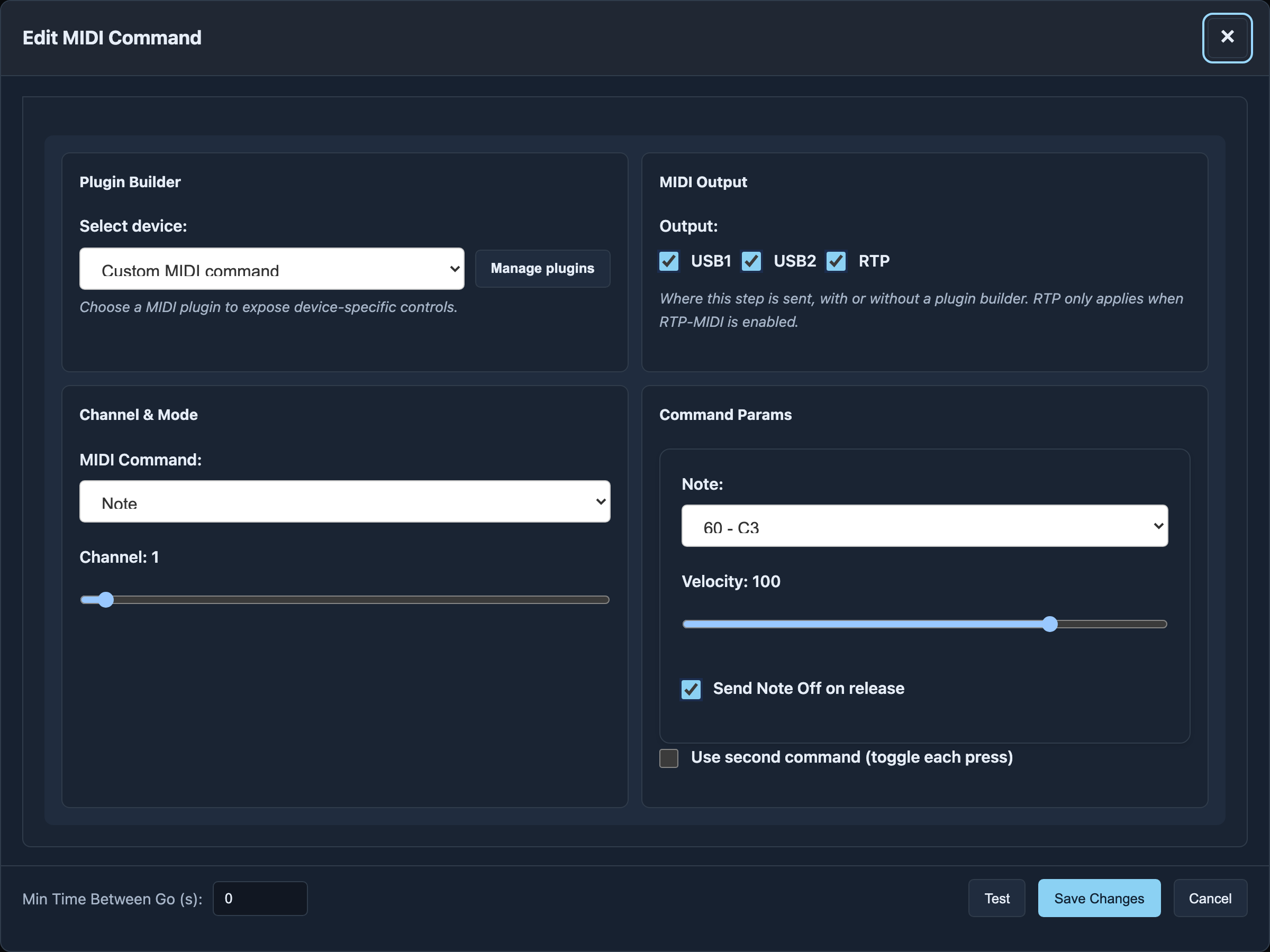
| Setting | Purpose |
|---|---|
| Output: USB1 / USB2 / RTP | Select each output for this step. RTP needs enabled RTP-MIDI; USB 2 must be available as a MIDI device port. |
| Channel | MIDI channel 1–16 |
| Note | Choose note and velocity; Send Note Off on release ends the note when released |
| Control Change | Controller number and value; Absolute sets a value, Relative + / − changes it in steps |
| Fade for CC | Fade between the configured A/B values over a duration in milliseconds |
| Program Change | Choose a program number; check the destination's numbering |
| SysEx | Enter hexadecimal bytes for the destination command, such as F0 … F7 |
A MIDI plugin can provide device-specific fields; output selection still applies.
OSC
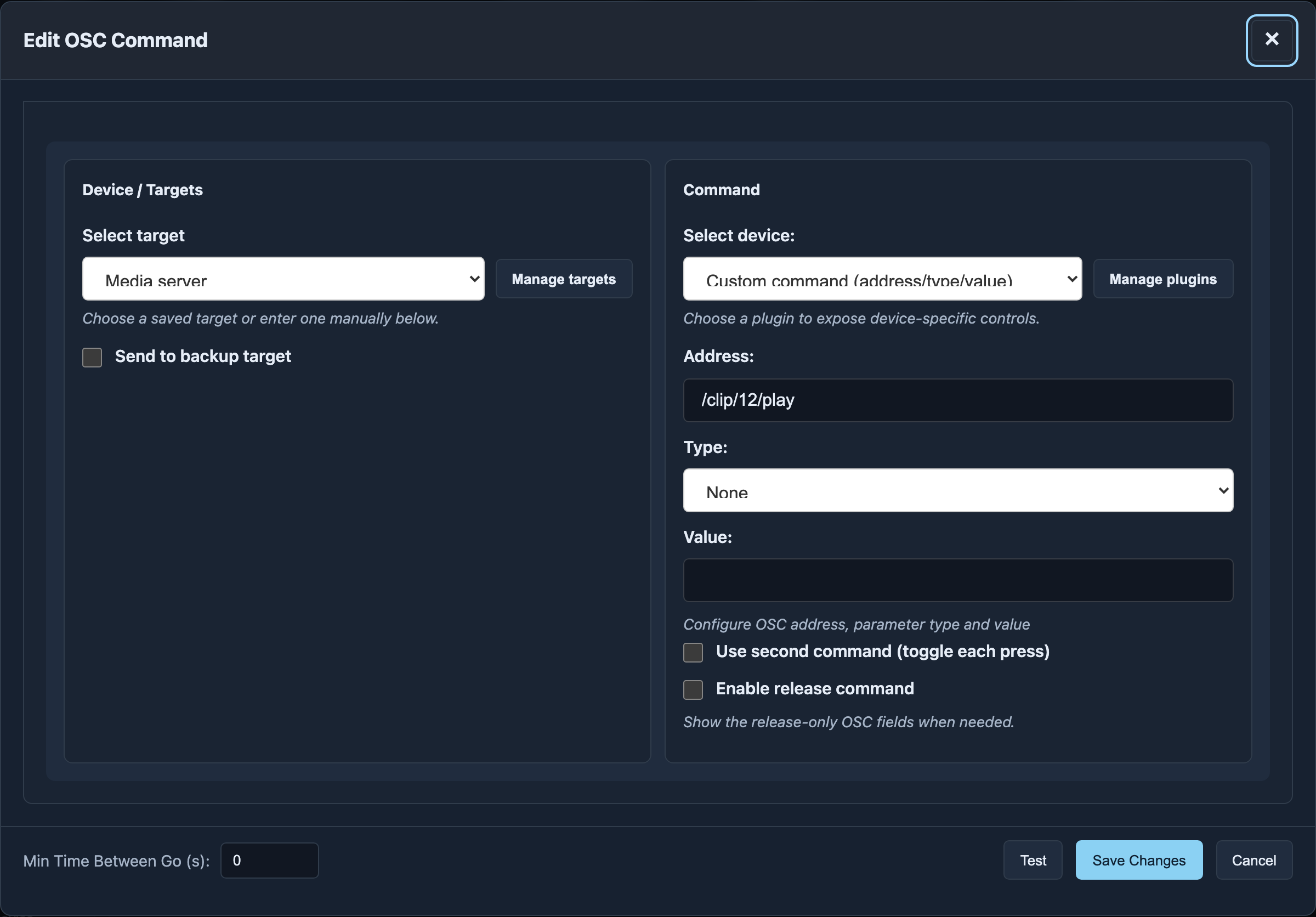
Choose a saved Target, or enter IP and port under Custom target. Send to backup target sends to a second destination as well. Use QLab addressing for this step offers a Workspace ID and optional passcode; a QLab scan can fill the host values.
Without a plugin, set Address, Type and Value. Types are no argument, String, Integer, Float or Double. Match the destination's required type: "1" as text and 1 as a number are different arguments.
HTTP
Select a target or host/IP and port, then set Method, Path, optional Headers and Payload. Methods are GET, POST, PUT and DELETE. Enter one header per line as Header-Name: value. Payload can be text or JSON and is sent with GET as well if entered. Use the values expected by your destination.
TCP
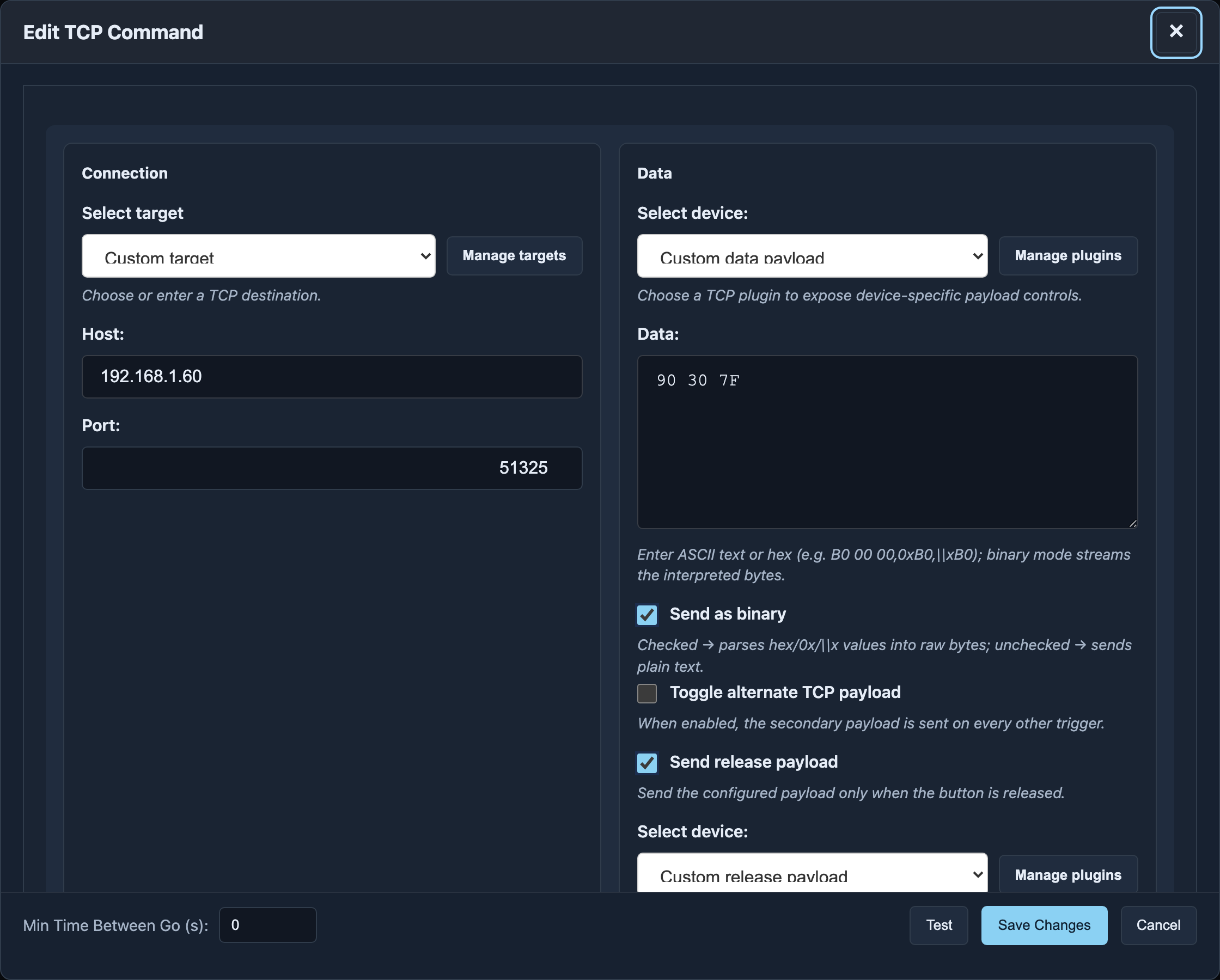
Choose a target or host and port. Data holds the content to send. With Send as binary off, it sends text; with binary enabled, hexadecimal values become bytes. A plugin can build the data from readable device fields.
Toggle alternate TCP payload sends alternate data on every other press; its binary setting follows the primary command. Send release payload sends when released and has its own binary option. Primary, alternate and release actions can each use plugin fields.
Enabled alternate/release fields must be complete. Wait for plugin fields to finish loading before saving. Saved plugin settings reappear when you reopen the command.
Art-Net & sACN
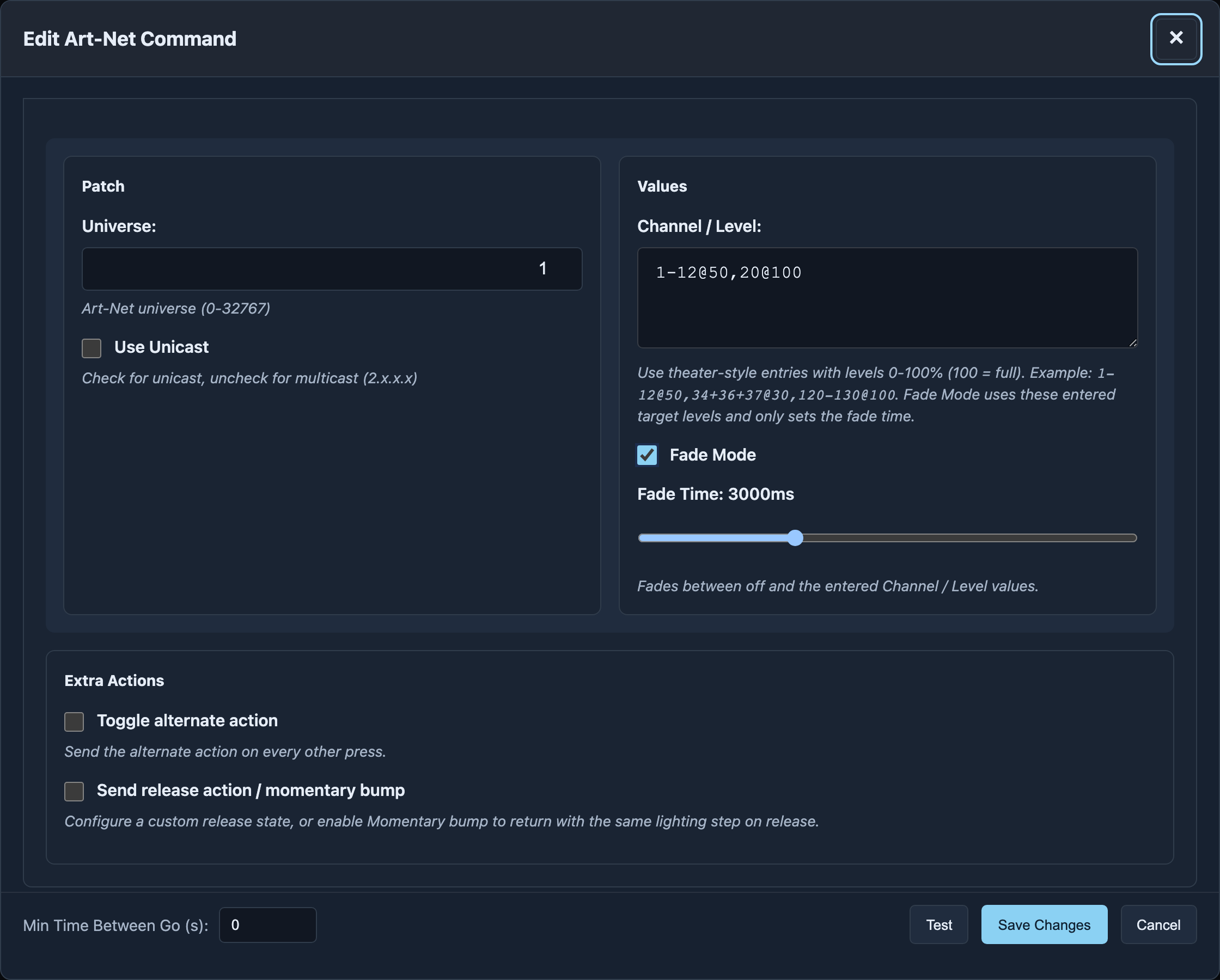
| Setting | Art-Net | sACN |
|---|---|---|
| Universe | 0–32767 | 1–63999 |
| Unicast | Destination IP or saved target | Destination IP or saved target |
| Without Unicast | Broadcast to 255.255.255.255 | Multicast for the universe |
| Priority | — | 1–200, default 200 |
| Channel / Level | Channels and percentages | Channels and percentages |
| Fade Mode / Fade Time | Fade between off and target levels | Fade between off and target levels |
Channel / Level uses theatre-style notation:
1-12@50, 34+36+37@30, 120-130@100
This sets channels 1 to 12 to 50%, the three individual channels to 30%, and channels 120 to 130 to 100%. Values are 0–100%, rather than raw DMX values of 0–255. Fade sets the time taken to reach the entered levels.
Momentary bump
Where offered, choose Momentary bump under Send release action: the lighting action is active while held; releasing sends the matching return action. It is available only with Toggle alternate action off. Use it for an accent that lasts for the button press.
Opposite encoder directions
When assigning an encoder turn, you may see Also map the opposite direction. It creates the matching opposite action too, such as level up and level down. Check the indicated second control before saving. Art-Net/sACN on encoder push uses the master fader instead.
Extra actions
Toggle alternate action alternates primary and alternate actions on successive presses. Send release action performs an additional action when released. The editor shows these options only for compatible protocols and assignments. MIDI and OSC use their corresponding second/release fields; TCP uses the payload fields above.
For HTTP, these extra actions change the payload; target, method, path and headers follow the primary command. Switch Set also offers Restore previous set selection on release: the selected set applies while held, then the previous sets return. Use this for temporary access to another mapping layer.
For a complete multi-step on/off sequence, use separate sequences in the Multi-Step editor.
Multi-Step
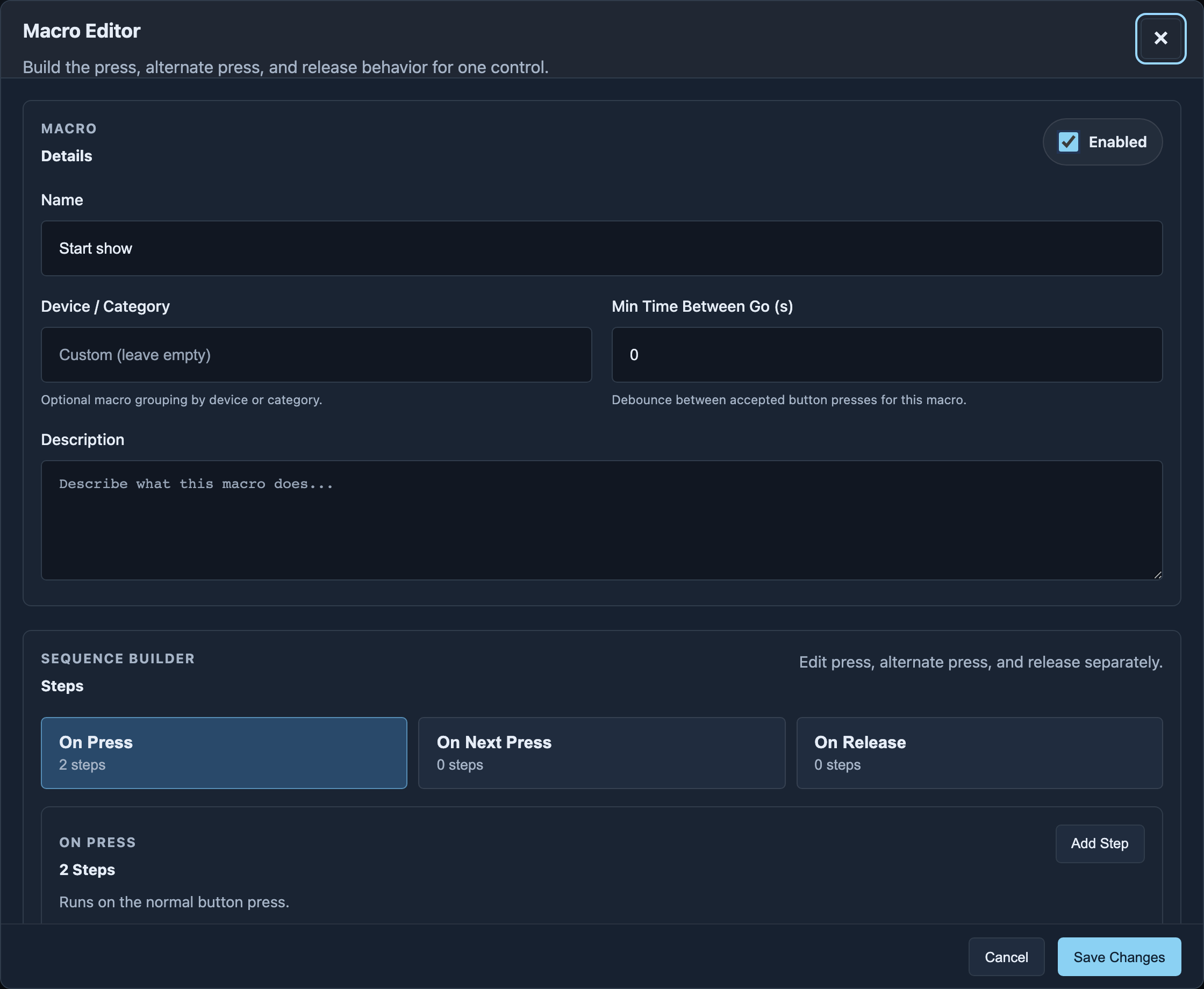
Set a name and description, add steps and configure each in its protocol editor. Reorder steps by dragging them. Apply with Save Changes.
| Sequence | When it runs |
|---|---|
| On Press | Normal button press |
| On Next Press | Every other press, alternating with On Press |
| On Release | Release |
Enable the two additional sequences in the editor. Delay waits the configured milliseconds before the next step. Button Mapping Switch / Switch Set switches selected device buttons or encoder controls to A, B or C. Variable sets a device variable name and value. TimeCode controls the MTC master or internal timecode.
Snapshots
A snapshot stores incoming Art-Net or sACN channel values for up to ten universes. Use it to recall a prepared lighting look without a continuously running console.
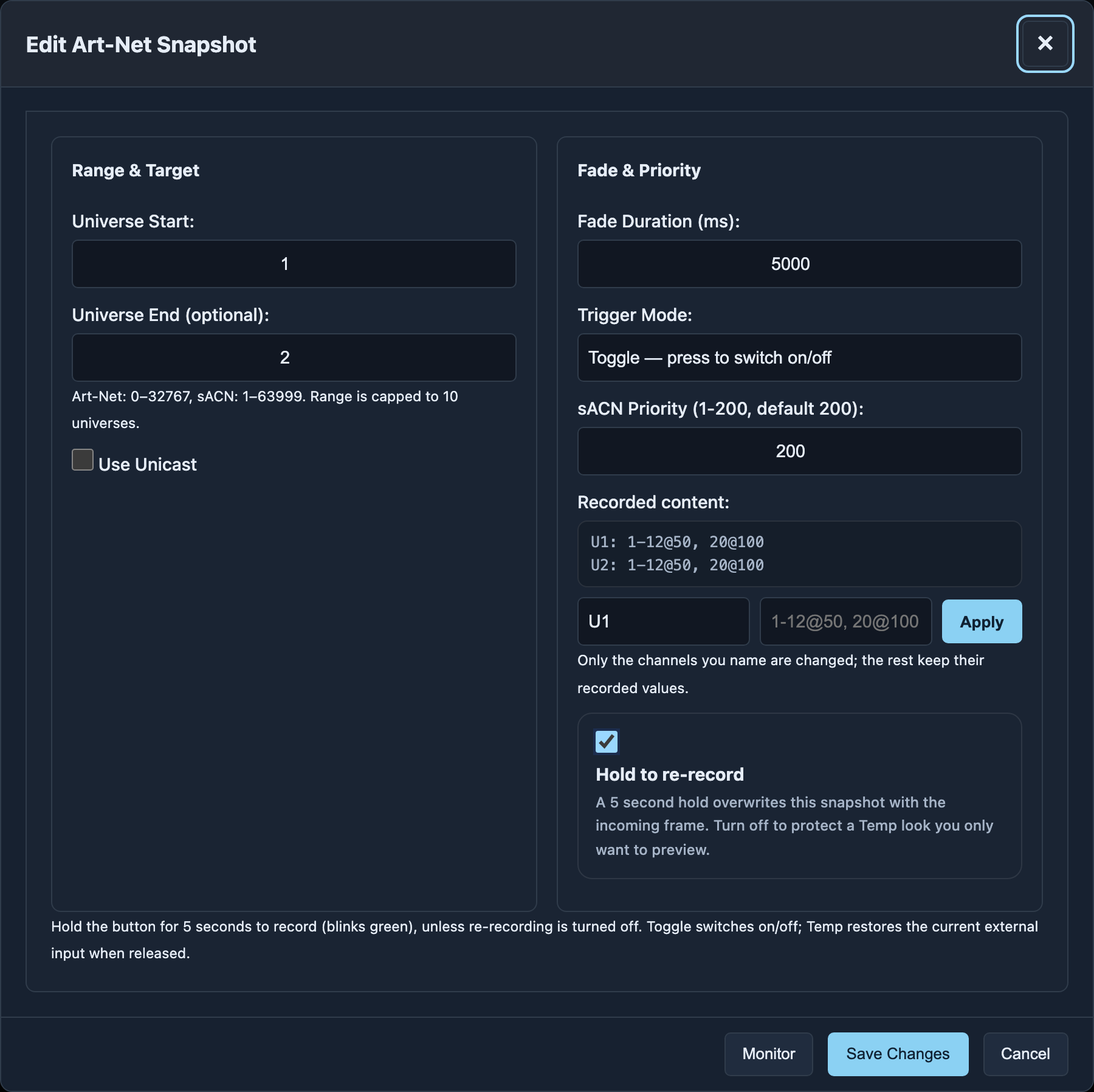
- Choose Art-Net or sACN snapshot creation in the macro picker.
- Enter Universe Start and optionally Universe End. Art-Net starts at 0, sACN at 1; maximum ten universes.
- Configure unicast and destination IP as needed.
- Set Fade Duration (ms) and Priority for sACN.
- Choose Trigger Mode: Toggle switches on/off on successive presses; Temp acts while held and restores the current external input on release.
- Create and assign. While the desired look is arriving, hold the assigned button for five seconds to record it; flashing green confirms recording.
Hold to re-record permits recording again with a long hold. Disable it if a long-held Temp look should not overwrite your stored snapshot.
Checking and correcting
Monitor shows stored values without triggering the snapshot. Select a universe; Non-zero only hides channels at 0. Refresh reloads the stored state.
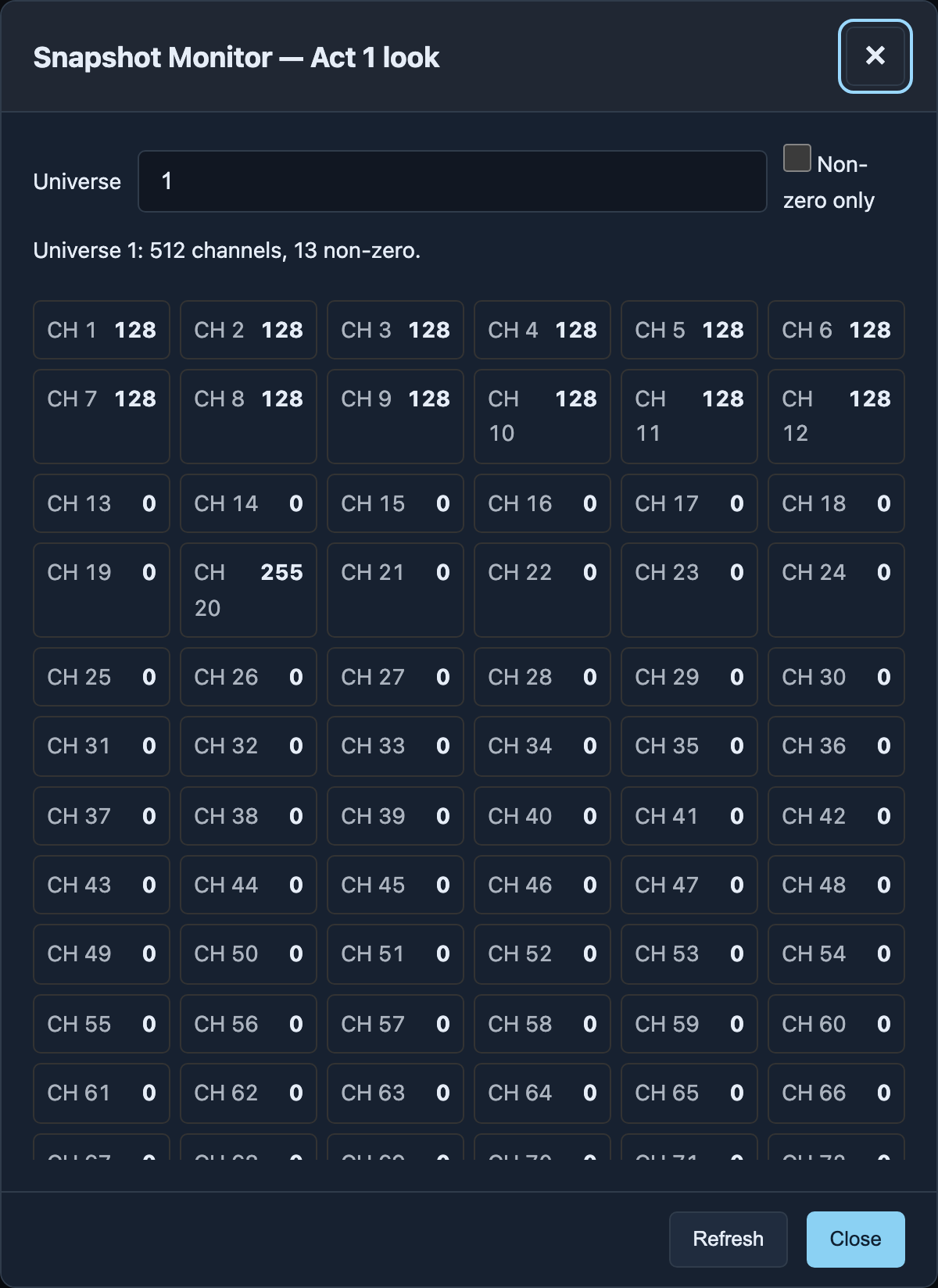
When editing an existing snapshot, Recorded content shows a summary. Choose a universe, enter a selection such as 1-12@50, 20@100 under Levels to apply, and choose Apply. Only those channels change; all others retain their stored values. Apply writes the correction immediately, without re-recording the entire snapshot.
Snapshot macros cannot be duplicated because the recording belongs to the original macro. Keep important looks in a backup.