Network Targets & Plugins
Network Targets and Plugins have their own pages in the sidebar of the web interface. A target stores where a command goes. A plugin helps you set up the right command for a particular device.
Network Targets
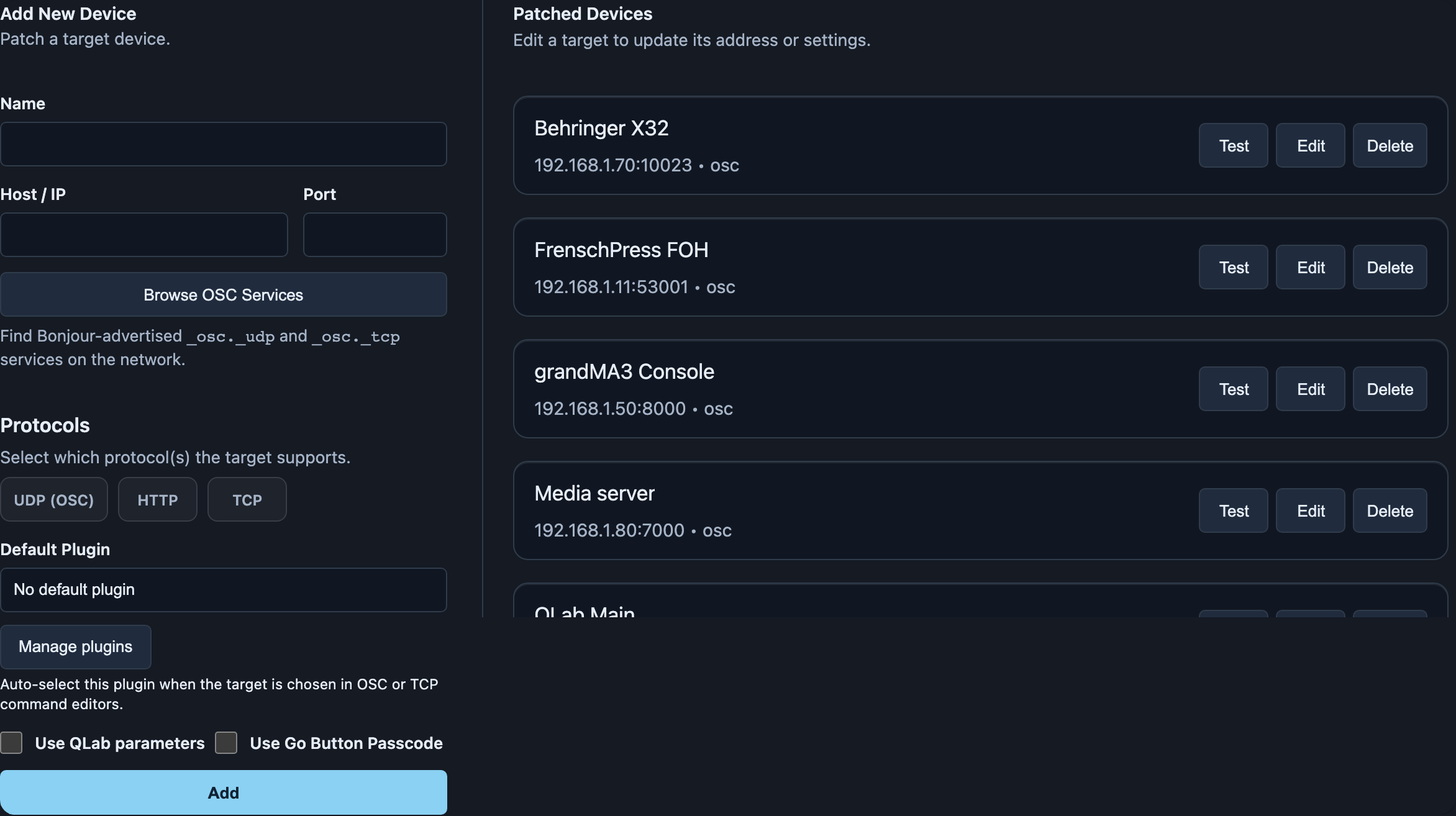
A target is a named destination, such as “QLab Master” or “Media server”. You create it once and use it in as many macros as you like.
- Open Network Targets.
- Enter a unique name, host/IP and port.
- Choose the protocols the destination understands. OSC runs over UDP. TCP and HTTP are only offered when they suit the destination.
- Optionally choose an installed Default Plugin. It is then preselected when you create an OSC or TCP command for this target.
- For QLab: enable Use QLab parameters and enter a passcode and Workspace ID if needed. For GoButton, use the corresponding passcode option.
- Save with Add. The target appears in the list.
You can edit or delete existing targets in the list.
- Test checks whether the destination is reachable and, for HTTP and TCP, the port as well. A successful test does not mean a show command will be executed.
- If a device uses different ports for different protocols, create a separate target for each.
- Default Target on Device Mode sets which destination is preselected for new commands. Existing macros keep their destination.
Finding devices on the network
Browse OSC Services looks for OSC services that advertise themselves on the local network. Select a result. Host and port are filled into the form. Check the values and save.
QLab has its own routes: Scan for QLab Host in the QLab fields, or QLab/GoButton Scan in Tools.
Discovery uses Bonjour/Zeroconf and only finds devices on the same local network. If a device does not appear, enter its address and port by hand.
Plugins
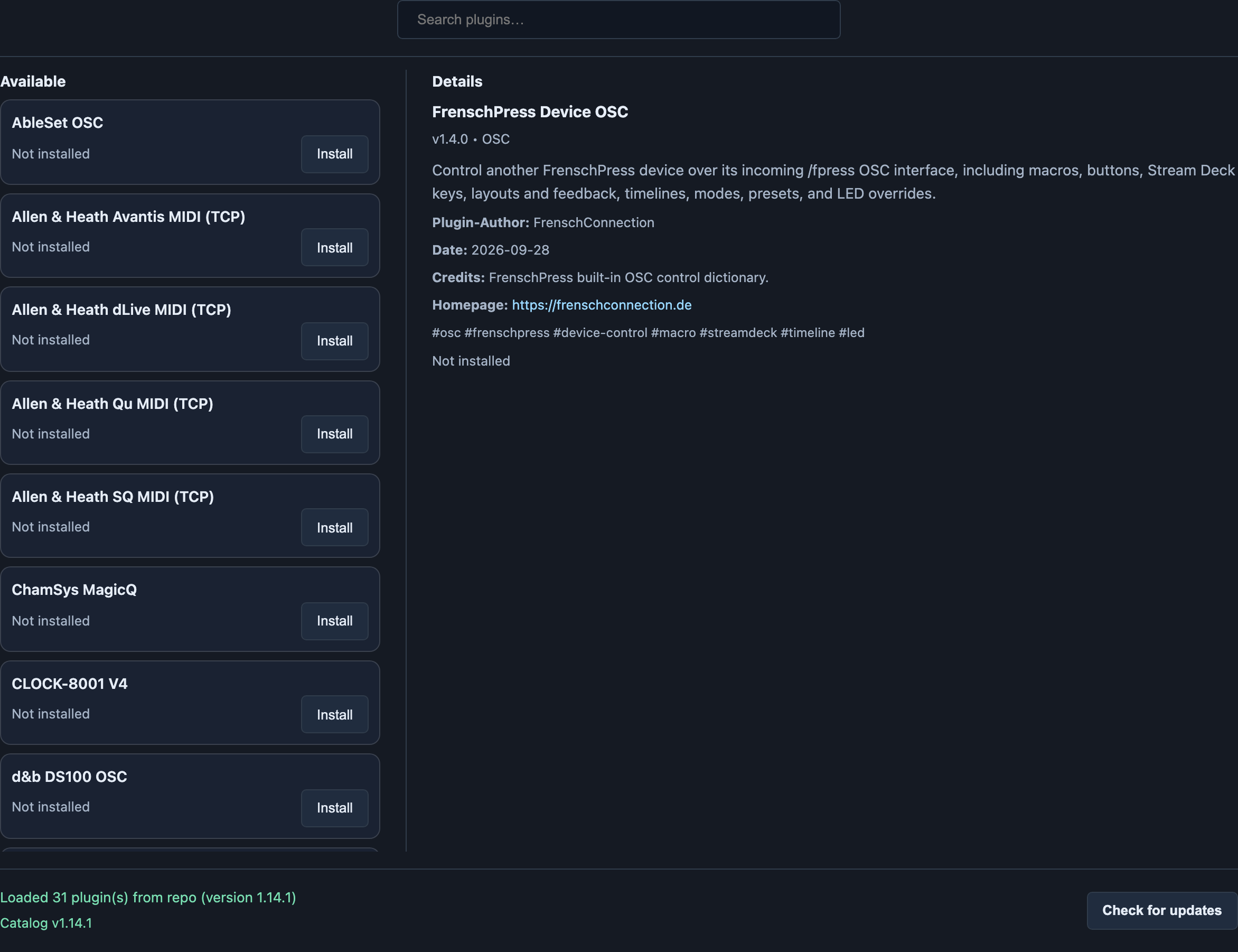
Plugins contain command templates and sometimes ready-made presets. They save you from typing OSC addresses or byte sequences yourself.
- Open Plugins and search for your destination device.
- Select an entry and check its description, protocol and version.
- Install or update the plugin with the button offered.
- Open the command editor and choose the plugin under Select device. Included presets are in the preset picker.
You can uninstall installed plugins again.
Check your important assignments after every plugin update, particularly when the plugin brings new settings.
Managing your macros
You open the macro library when you assign a macro to a button, an encoder or a timeline cue. What you can do there and how to create commands is described under Commands & snapshots.
The former Blueprints Library has been removed. Create new commands with Quick-Create or Multi-Step, using the installed plugins. To move a configuration to another device, use preset export/import or a backup.
Troubleshooting
| Symptom | Cause | Fix |
|---|---|---|
| Device does not appear under Browse OSC Services | It does not advertise itself, or it is on a different network | Enter address and port by hand |
| Test succeeds, but the command has no effect | The test only checks reachability | Check the command, port and protocol in the macro |
| Plugin library does not load, message about a missing internet connection | The library needs internet access | Connect to the internet. Plugins already installed remain usable on the device. |