Getting to know the web interface
The web interface runs on your FrenschPress. Open its address in a browser and sign in; you do not need any additional application.
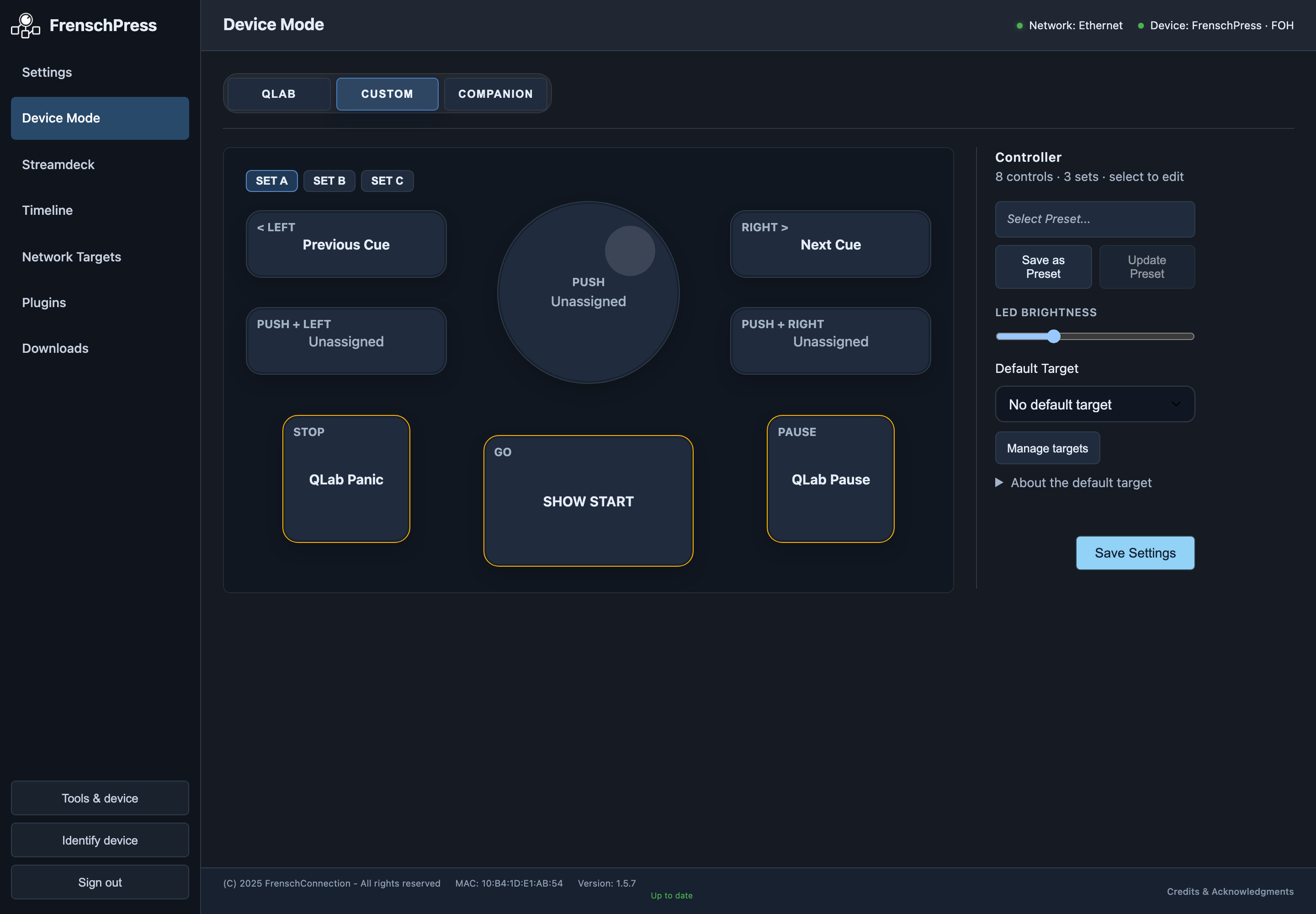
Navigation
On a computer, choose a page from the sidebar on the left. The status bar at the top shows where you are. Reloading returns you to the last available page you opened.
| Page | What you will find |
|---|---|
| Settings | Device name, networking, OSC port, Art-Net TC, RTP-MIDI, USB roles, storage, backup and updates |
| Device Mode | QLab, Custom and Companion; control assignments, presets and LED brightness; keyboard/mouse mappings when HID is enabled |
| Streamdeck | Assignments, images, feedback, pages, layouts and displays for a connected deck |
| Timeline | Timecode-driven cues; use a wide browser window for editing |
| Network Targets | Addresses and protocols for your destination devices |
| Plugins | Install and manage command templates and included presets |
- Streamdeck only appears once a supported deck is detected.
- You select and edit macros directly from a control or cue assignment.
- Tools & device, Identify device and Sign out are at the bottom of the sidebar.
The former “Manage” page has been replaced by Network Targets and Plugins.
On your phone
- The bottom bar gives you direct access to Home, Device Mode and Settings.
- Tap ☰ at the top left to open the navigation with the other pages and the device actions.
- Close it with ×, by tapping outside the drawer, or with Escape.
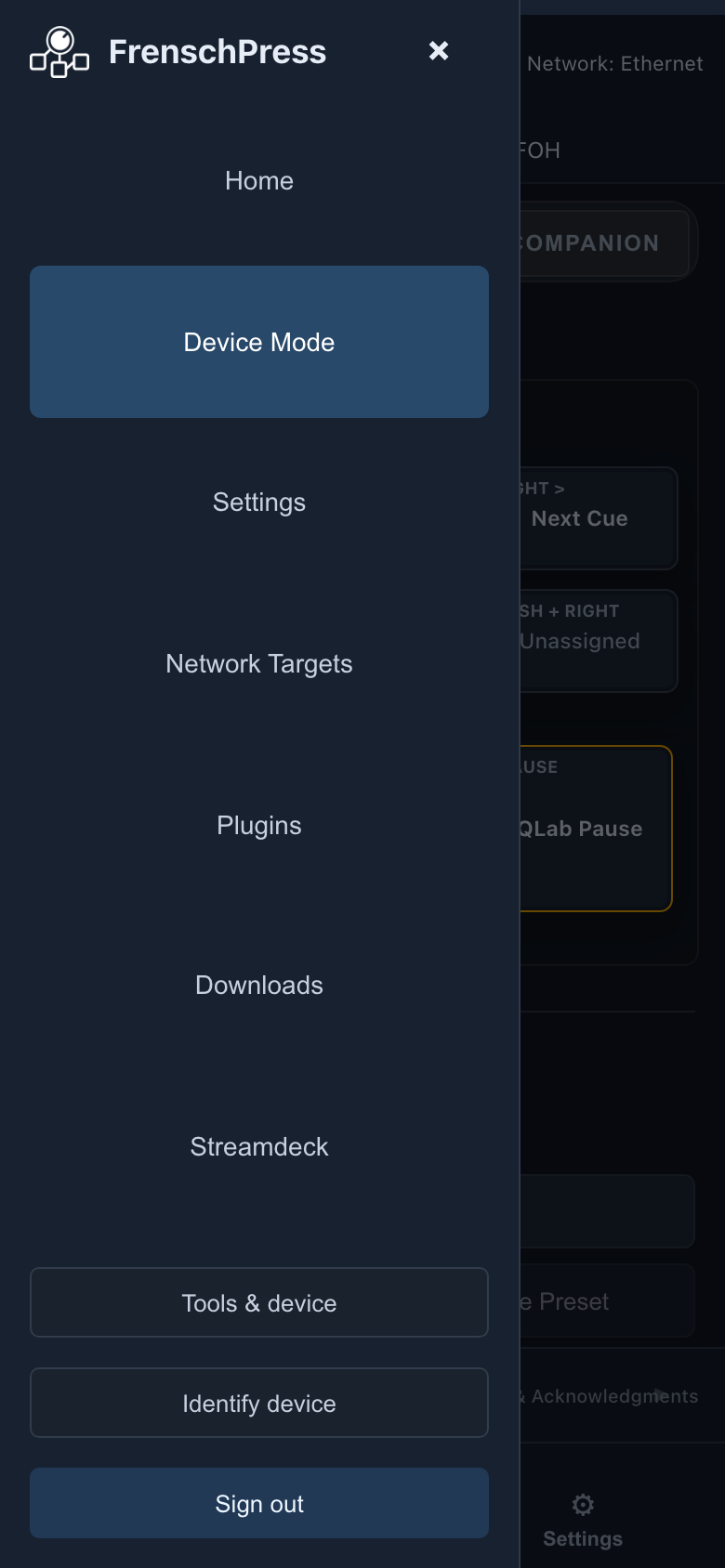
Home brings together the most frequent actions. The controller view stays clickable on a phone. The Timeline is not available in the narrow phone view; use a computer or a sufficiently wide window.
Applying changes
Switching pages does not save anything. Apply each change with the matching button:
| Button or action | What it does |
|---|---|
| Save Settings | Saves the form settings on the current page |
| Save in a control editor | Saves that control assignment |
| Save Timeline | Applies edited cues and timeline settings |
| Timeline Enable Cue Playback | Changes the arm state immediately, independently of unsaved cue edits |
| Ethernet Apply | Saves the manual address and restarts immediately |
| Save & Reboot | Saves the USB role and restarts the device |
| Save & Restart USB 2 | Saves the host role and restarts USB 2 |
Wait for the confirmation after saving. If saving fails, your edits stay visible: check the connection and save again.
Screenshots show the current interface with example names and addresses. Your devices, assignments and available plugins may look different.