Manage storage
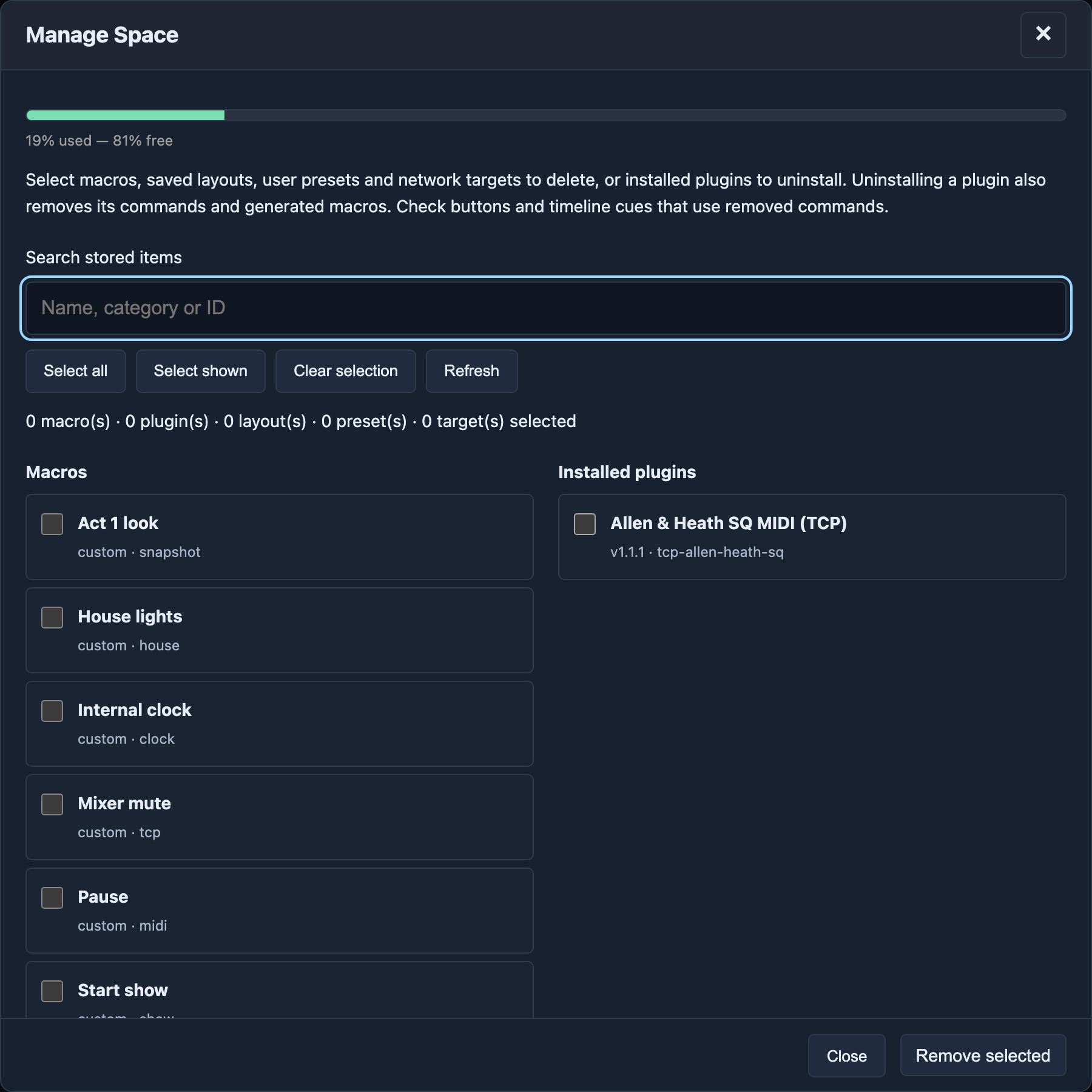
Settings → Storage shows used space. If storage is full, FrenschPress cannot save more macros, plugins or snapshots. Choose Manage to open Manage Space.
Cleaning up
- Create a backup first.
- Search by name, category or ID.
- Select the entries you want to remove.
- Choose Remove selected.
- Review the confirmation list and confirm.
- Wait for progress and the result.
| Group | What you can remove |
|---|---|
| Macros | Saved macros, including hidden helper macros |
| Installed plugins | Installed plugins and their associated content |
| Saved layouts | Saved Stream Deck layouts, including other device families |
| User presets | Your presets; system and plugin presets are not offered individually here |
| Network targets | Saved destination devices |
Select shown selects only entries matching the search filter. Select all selects every loaded selectable entry, including those outside the filter. Clear selection clears checkboxes; Refresh reloads the lists.
Remove only content you no longer need. Macros or targets may still be referenced by assignments. Deleting the active layout resets its deck configuration; the confirmation dialog warns you about this.
The dialog stays open during removal and shows progress. Successfully removed entries leave the selection. Failed entries stay selected so you can retry them. A group that could not load cannot be selected accidentally; use Refresh and check again.
Stream Deck images
Key images live on USB 2 and have separate storage. Open Streamdeck → Image storage to inspect usage and run Delete unused images. Images referenced by the current configuration or a saved layout are kept. See Key images.